# Create a Assignments
The **Assignments** feature allows instructors to assign coursework to students as part of a course. These assignments can be graded, include file submissions, and be integrated seamlessly within the curriculum structure.
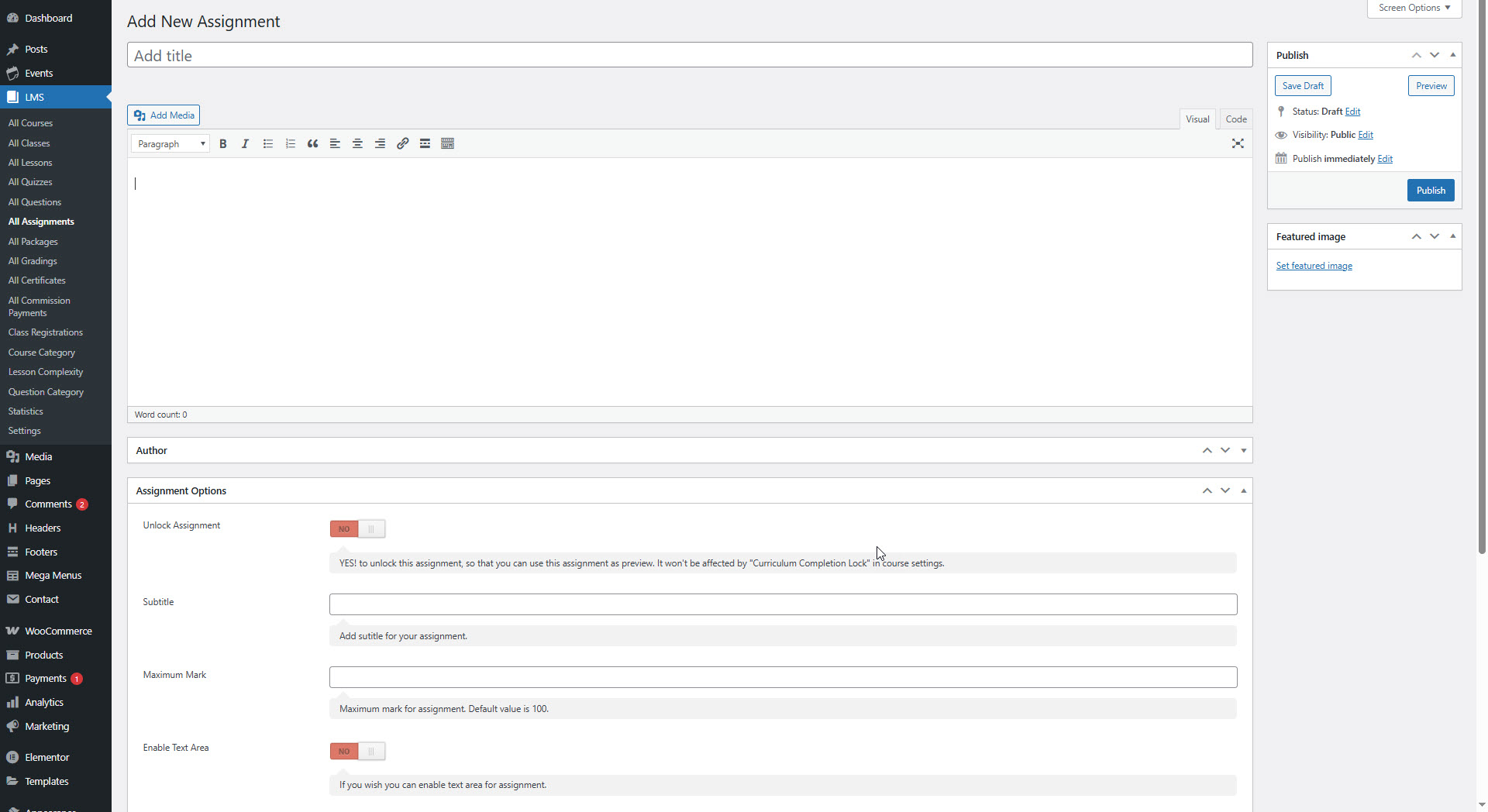
You can create an assignment from: **Dashboard > LMS > All Assignments > Add New**
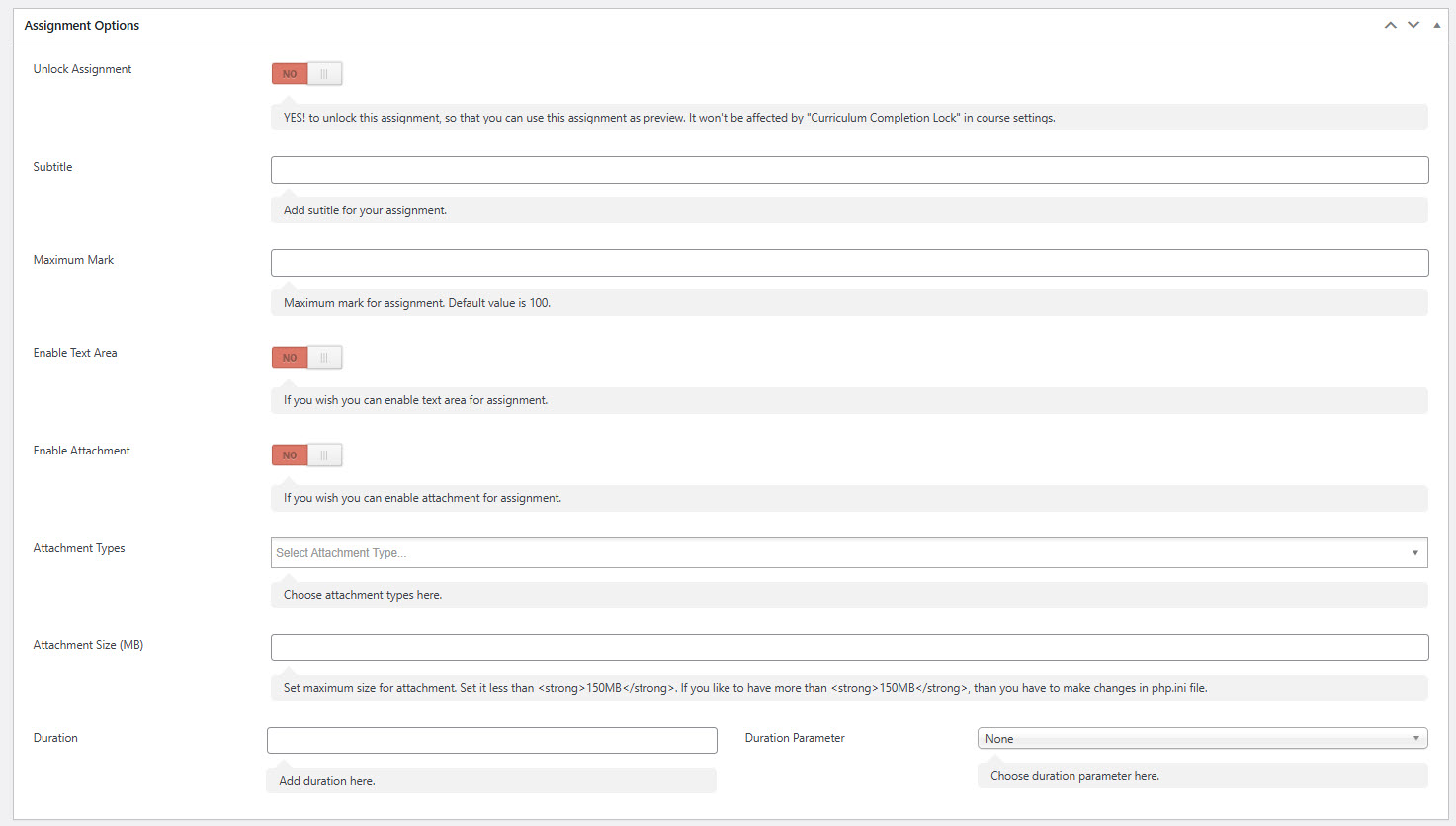
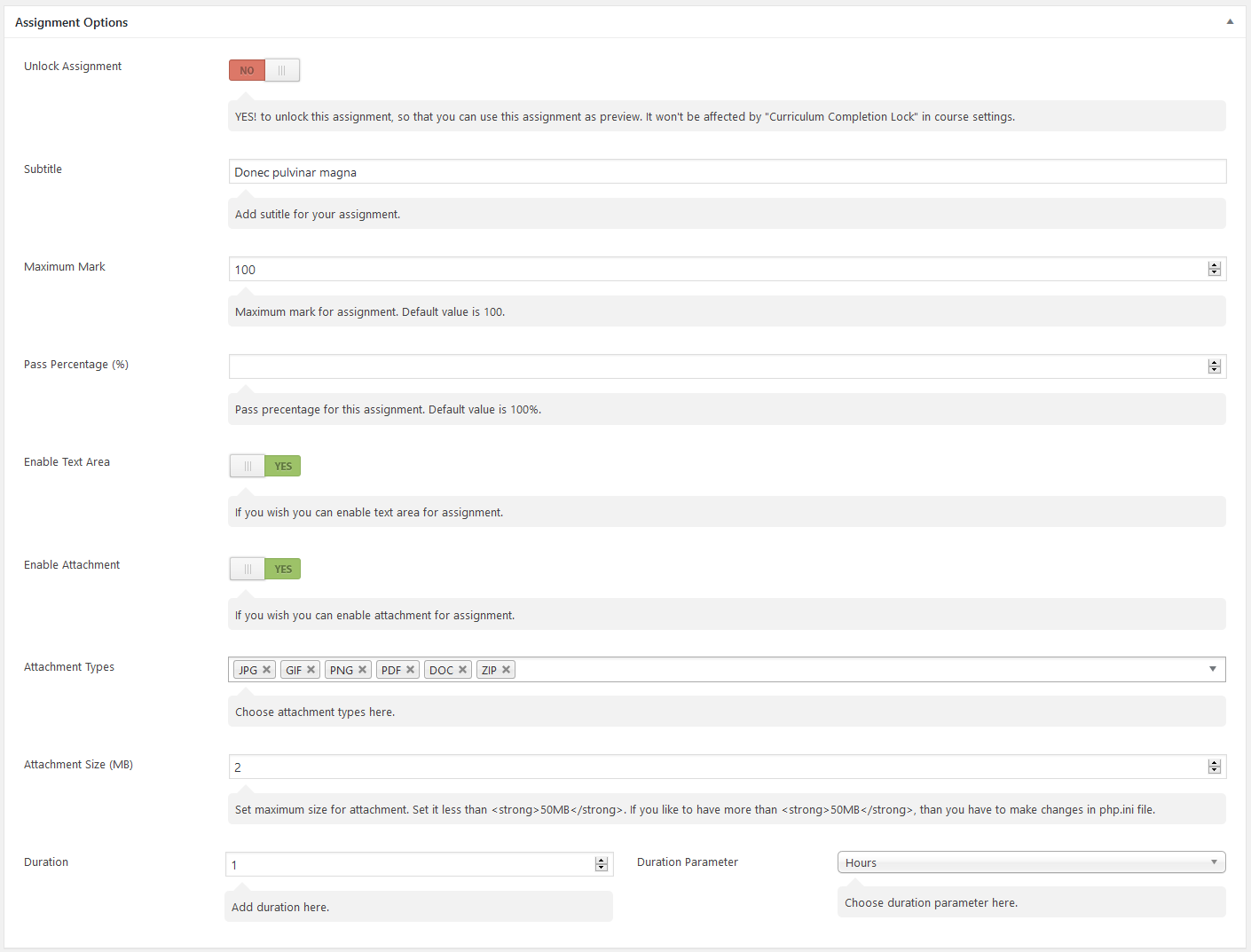
**Assignment Options**
* **Unlock Assignments :**
This option lets you make the assignment publicly viewable—regardless of whether the course is paid or free. When enabled (`YES`), the assignment becomes accessible to all users and is **not restricted** by the *"Curriculum Completion Lock"*.
* **Subtitle :**
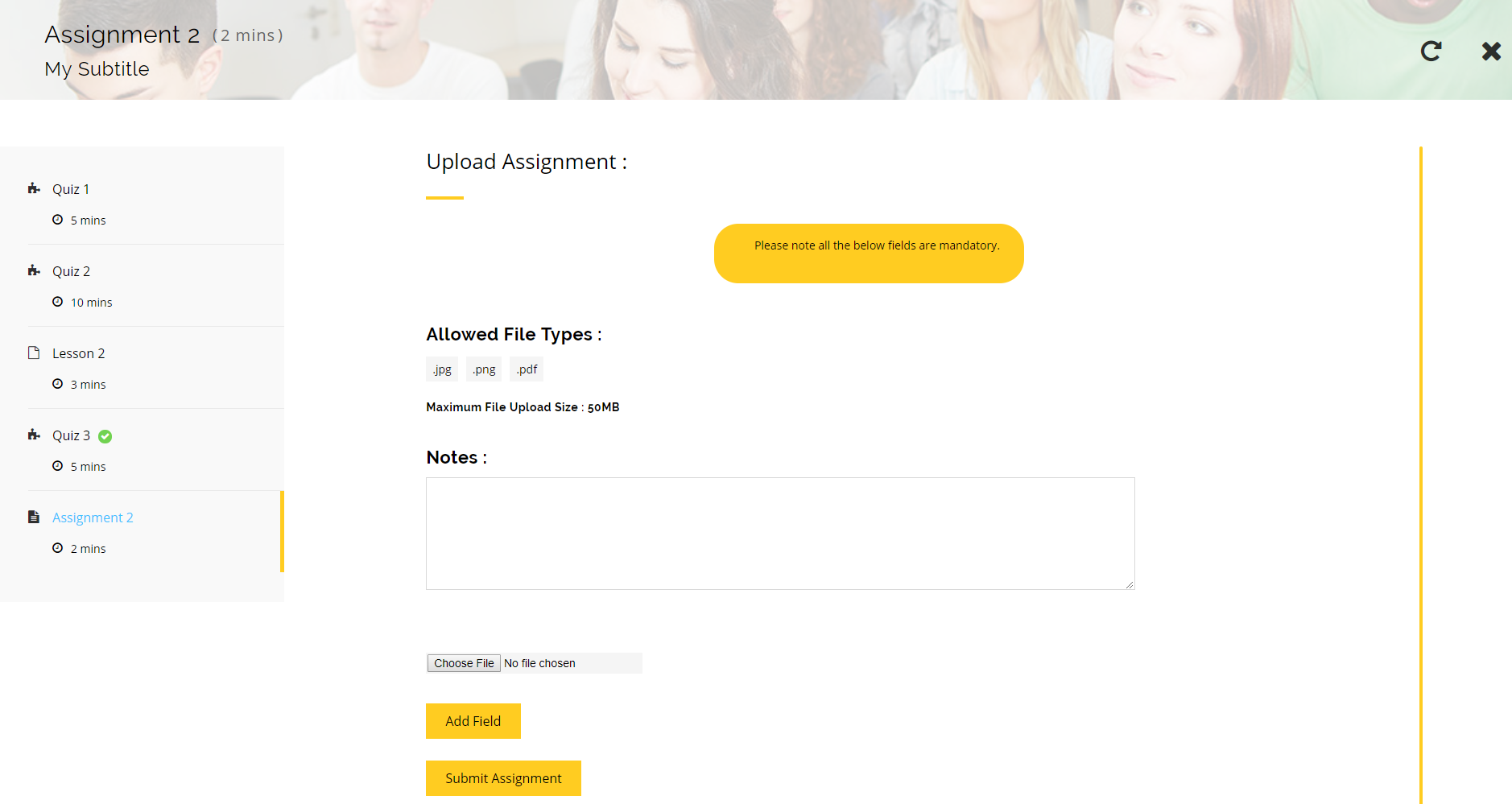
Use this field to provide a subtitle for your assignment. This will appear just below the assignment title on the quiz/assignment page, offering additional context.
* **Maximum Mark :**
Set the maximum score for the assignment (default is 100). This value will be used during grading, but admins/instructors can override it while evaluating the submission.
* **Pass Percentage (%) :**
Specify the minimum percentage required to pass the assignment (default: 100%). *Note: This setting is reserved for future use. We welcome your feedback and suggestions for its implementation.*
* **Enable Text Area :**
Enable this option if you want students to submit notes along with their assignment. It’s useful for providing context, explanations, or additional comments during submission.
* **Enable Attachment :**
Toggle this option to allow or restrict students from uploading files along with their submission.
**Attachment Types :** Control which file types students can upload. The supported formats include:\
**Images**: JPG, GIF, PNG\
**Documents**: PDF, DOC, DOCX, PPT, PPTX, PPS, PPSX, ODT, XLS, XLSX\
**Audio**: MP3, M4A, OGG, WAV, WMA\
**Video**: MP4, M4V, MOV, WMV, AVI, MPG, OGV, 3GP, 3G2, FLV, WEBM\
**Other**: APK, RAR, ZIP
You can select specific formats to restrict uploads as per your course needs.
**Attachment Size (MB) :** Set the maximum file size for student uploads (recommended: below 50MB).
> *Note: For larger file sizes, update the `upload_max_filesize` and `post_max_size` values in your server's `php.ini` file.*
**Duration :** Specify how long the assignment should take to complete. This duration will be shown on the course detail page. If **Drip Feed** is enabled for your course, this duration acts as a *threshold* before unlocking the next curriculum item.
**Duration Parameter :** Choose the time unit for assignment duration from: **Seconds, Minutes, Hours, Days, Weeks, Months, or Years**
***
#### ✅ Summary
With these flexible assignment options, instructors can:
* Offer both downloadable and interactive assignment formats
* Set clear evaluation standards with marks and passing criteria
* Integrate submission windows and drip-feed controls
* Allow tailored file types and student input